Allocator Reports
After an Allocator file has finished processing, use the report tabs to review the allocation results, match quality, address exceptions, and premiums assigned to each jurisdiction.
Allocator reports are available in the main section of the Allocator workspace after you select a processed job from the jobs list.
Open Allocator Reports
After the file finishes processing, click inside the job tile on the left side of the Allocator workspace.
The reports for the selected job appear in the main section of the screen. Use the report tabs at the top of the report area to switch between reports.
Job Summary
Start with the Job Summary report.

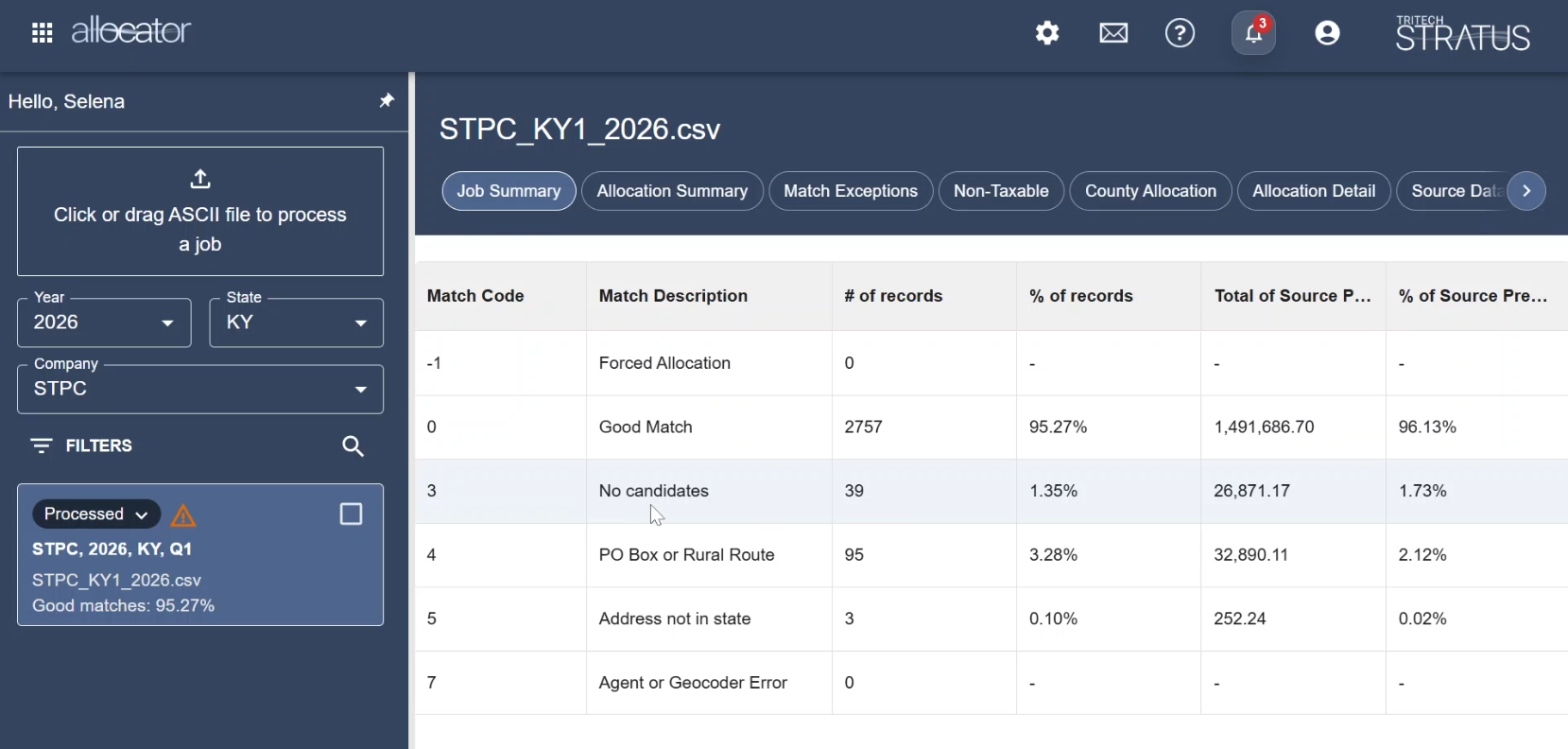
The Job Summary provides an overview of how the file processed. It groups policies by match code and shows the number and percentage of records in each match category. Use the Job Summary to review the overall quality of the allocation job before reviewing individual records.
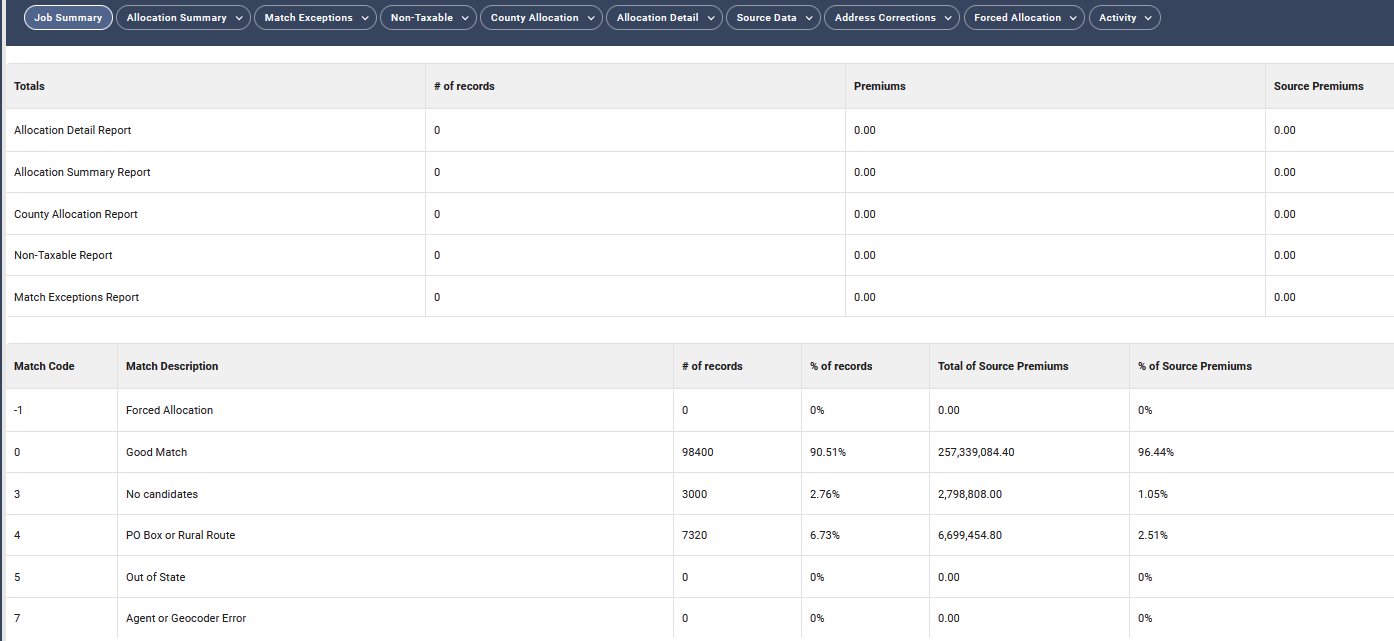
In addition to match code information, the Job Summary includes consolidated totals from several allocation reports, allowing it to serve as a single summary report for client review. When applicable, the report includes totals from:
• Allocation Summary
• Fire Premiums Summary (South Carolina)
• County Allocation Summary
Common match codes include:
- 0 = Good Match
- 3 = No Candidates
- 4 = PO Box or Rural Route
- 5 = Address Not in State
- 7 = Geocoder or processing error
- -1 = Forced Allocation
Note: The consolidated totals are available for all states. State-specific totals, such as the South Carolina Fire Premiums Summary, are included only when applicable.
Source Data Report
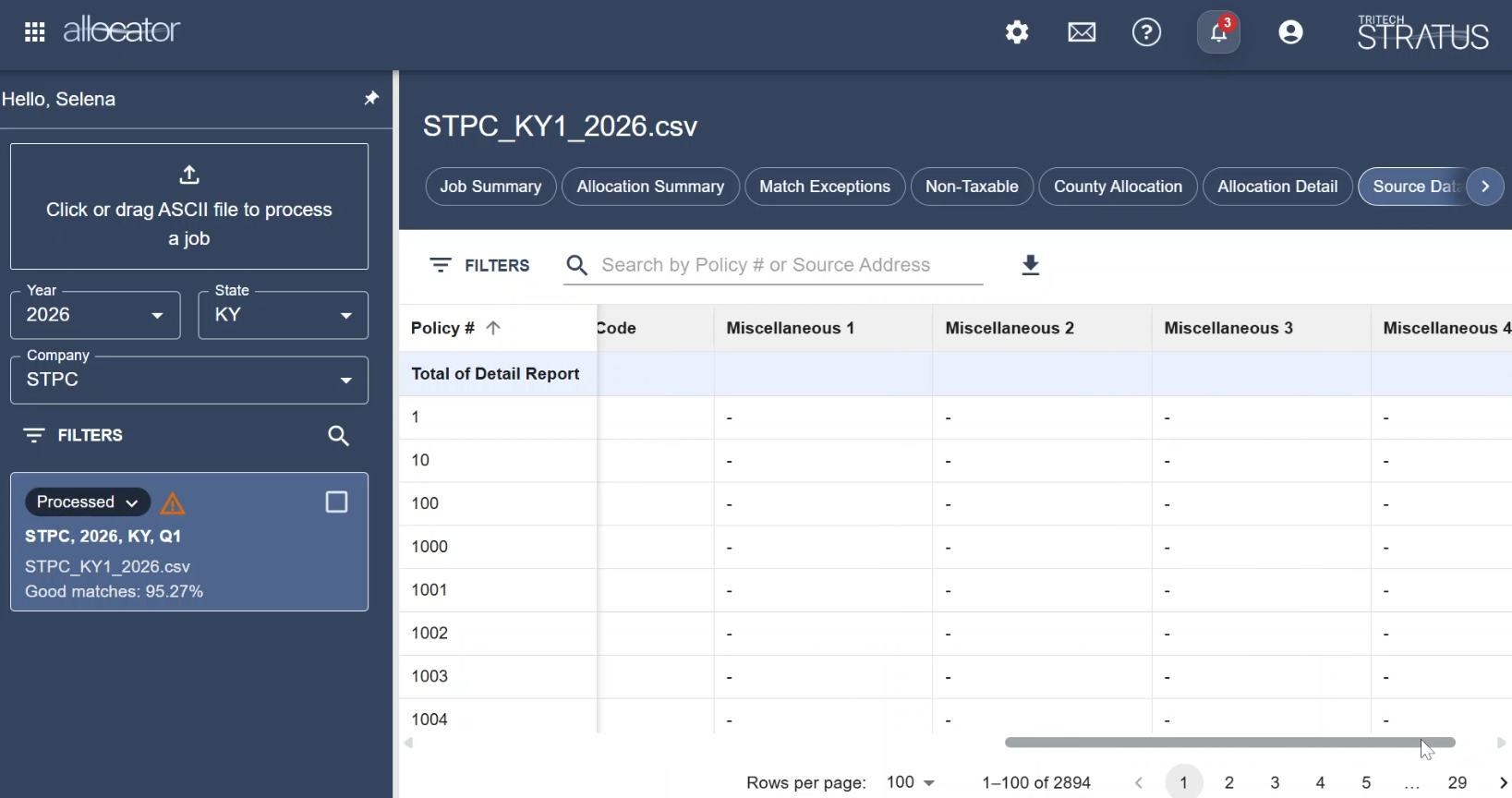
The Source Data report displays the data from the source file that was processed.

Use this report as a reference when reviewing policy information from the uploaded file.
The Source Data report includes:
- Policy number
- Source premium amount
- Premium type
- Source address
- Company code
- Miscellaneous fields
The Source Data report is for reference only. Address corrections are not made from this report.
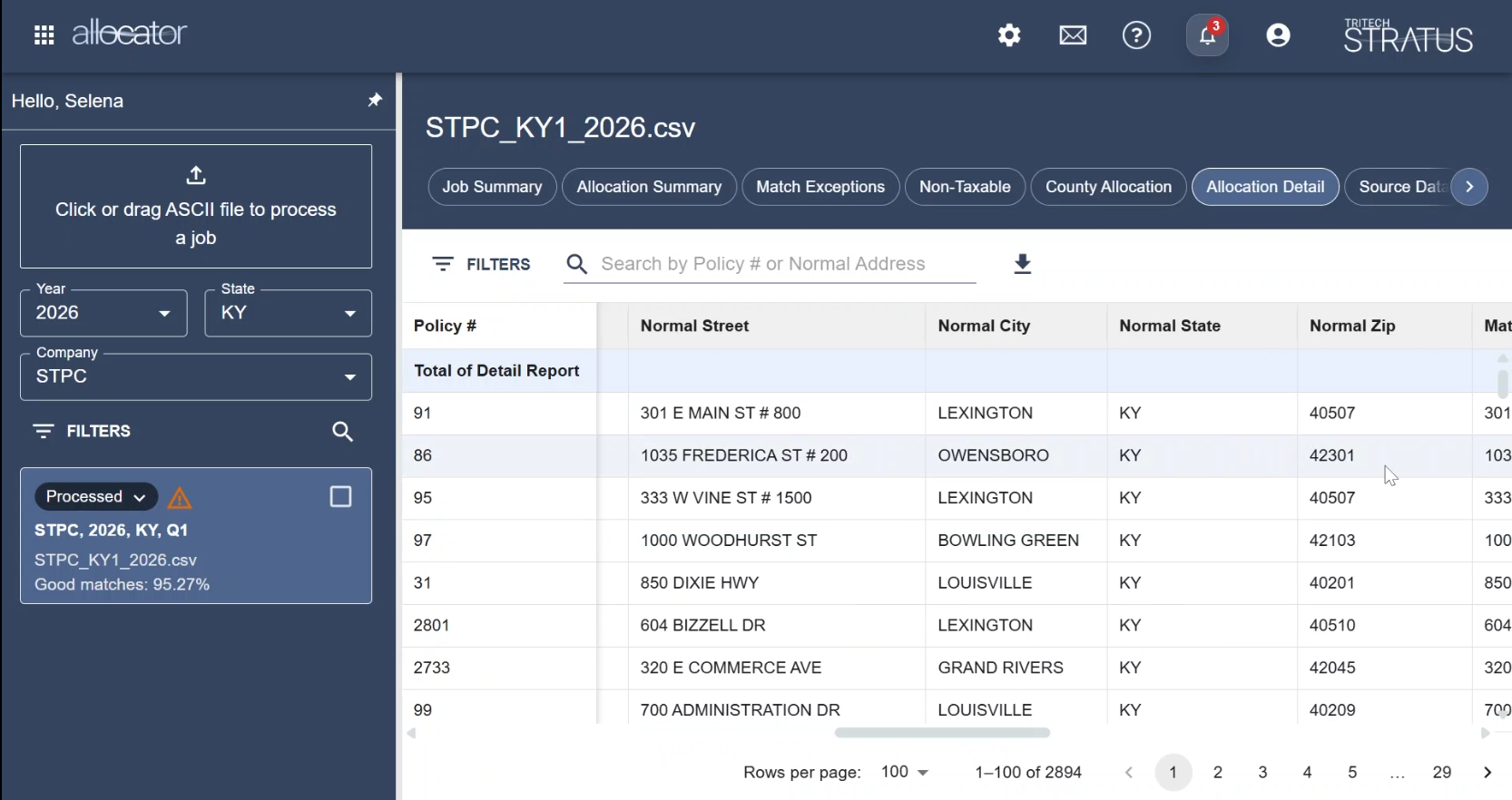
Allocation Detail Report
The Allocation Detail report shows policy-level allocation results.
Use this report to review where each policy was allocated and how the matched address compares to the address from the source file.
The Allocation Detail report includes:
- Policy number
- Premium amount
- Jurisdiction assigned to
- Jurisdiction code
- County
- City
- Match code
- Premium type
- Normal address
- Matched address
- Miscellaneous fields
Match Exceptions Report
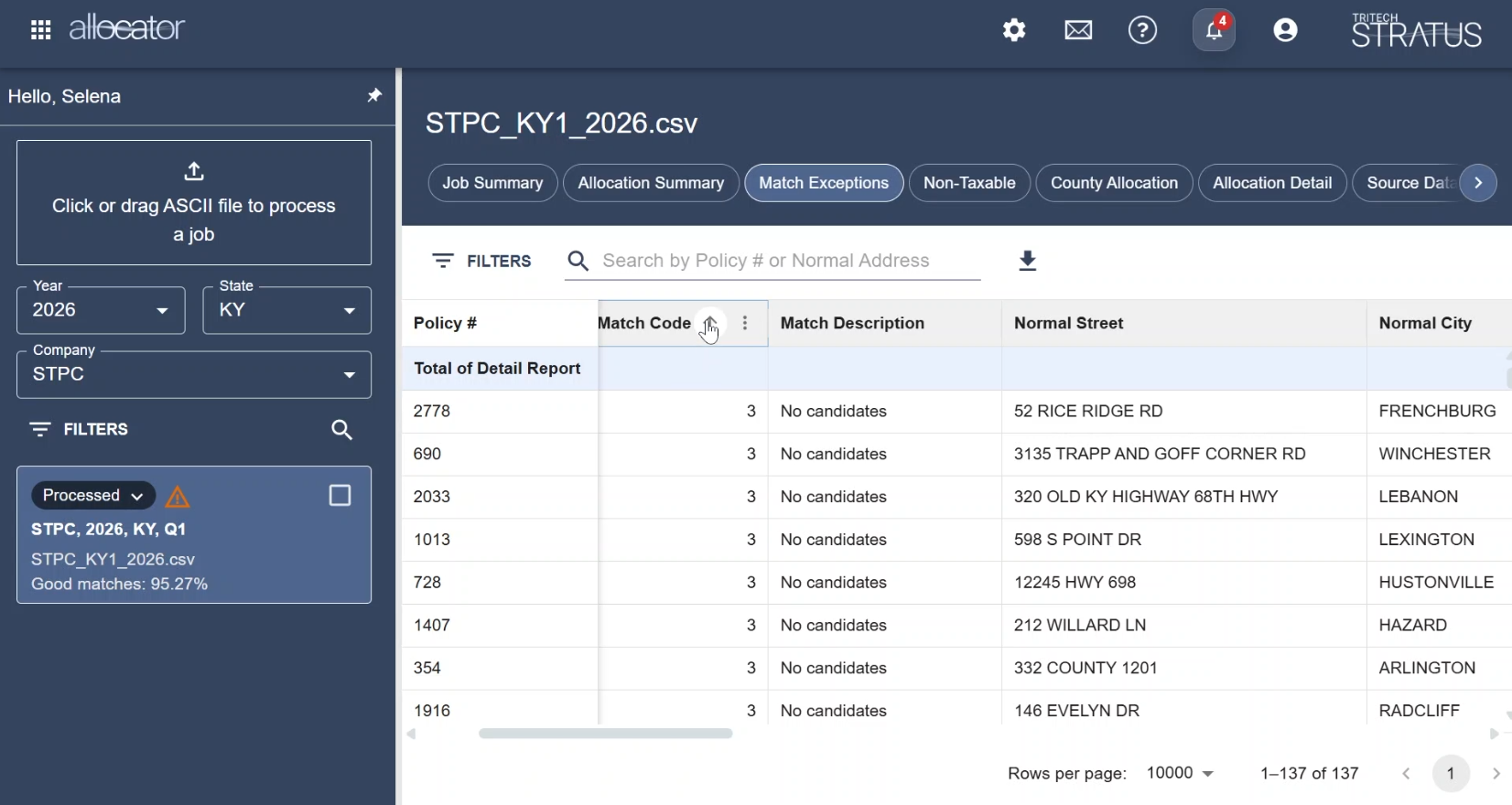
The Match Exceptions report lists records that may need review.
This report includes records with match issues, such as no candidates, PO Boxes, Rural Routes, out-of-state addresses, or incomplete source address information.
Use this report to identify records that may need address correction before the job is approved.
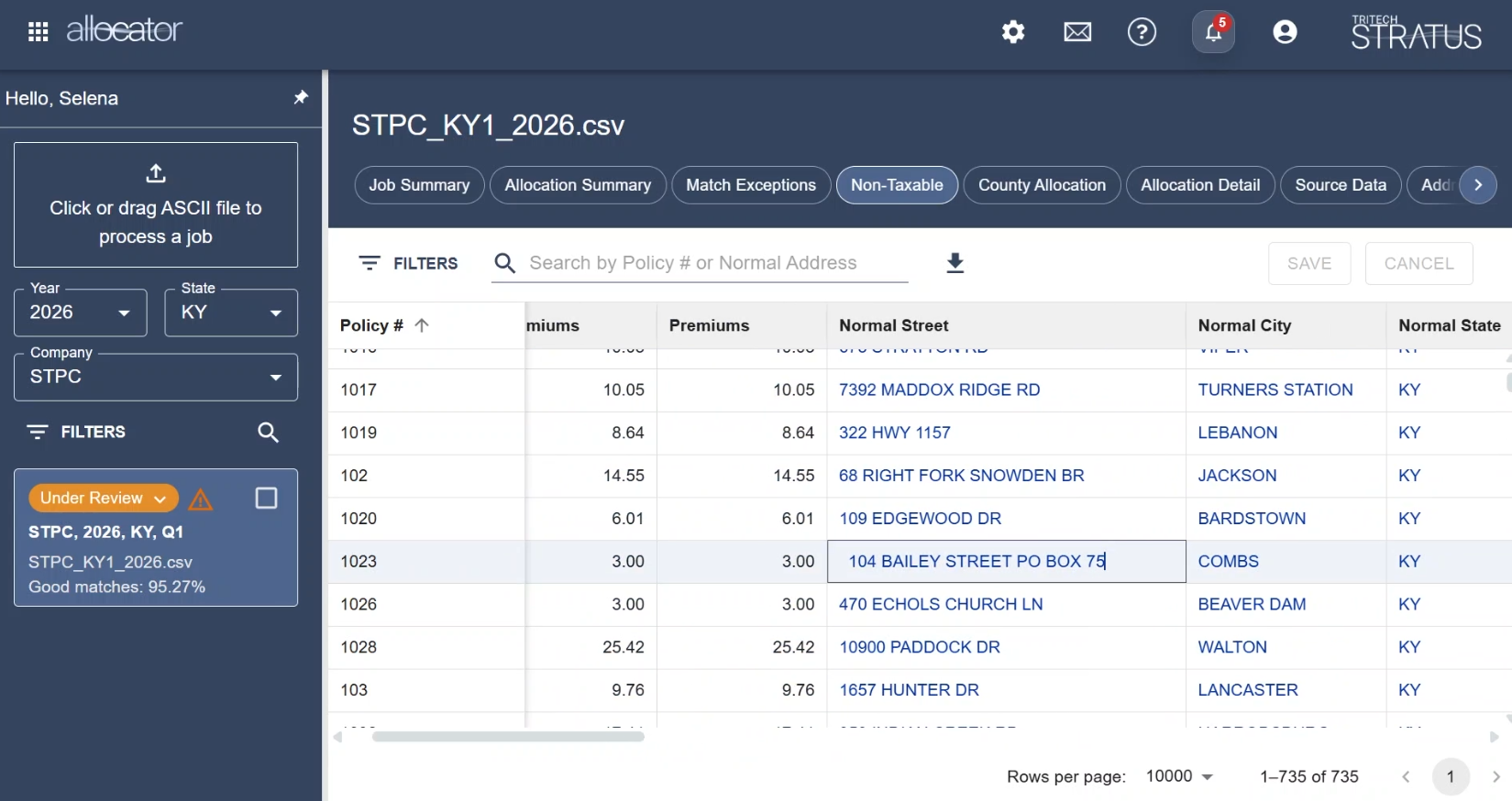
Non-Taxable Report
The Non-Taxable report lists policies assigned to non-taxable areas.
In Allocator, non-taxable areas may use jurisdiction code 9998.
Use this report to review policies that were assigned to a non-taxable jurisdiction and identify any records that may need correction.
Address Corrections Report
The Address Corrections report lists address changes made by users during review.
Use this report to confirm which addresses were corrected, who made the correction, and when the correction was made.
The Address Corrections report includes:
- Policy number
- Source address
- Corrected address
- Corrected by
- Correction date



Allocation Summary Report
The Allocation Summary report groups allocation results by taxing jurisdiction.
Use this report to review total records and premiums assigned to each jurisdiction.
Depending on the state or module, this report may also include premium breakdowns by line of business.
County Allocation Report
The County Allocation report is available when applicable.
For Kentucky, this report details premiums allocated to counties for policies filed in designated cities.
Use this report when reviewing Kentucky allocation results that include county allocation information.
Activity Report
The Activity report lists timestamped actions that occurred during the allocation job.
Use this report to review job activity and user actions.
Search, Filter, and Sort Reports
Allocator reports include tools to help you review large sets of policy records.
You can use report tools to:
- Search for specific policy or address information
- Filter by one or more columns
- Sort report columns
- Change the number of rows shown on the page
- Hide or manage report columns, when available
For more information, see Report Tools: Search, Filter, Sort, and Manage Columns.
Download an Individual Report
To download the report currently displayed, use the download icon for that report.
The downloaded file includes the report data visible for the selected report.
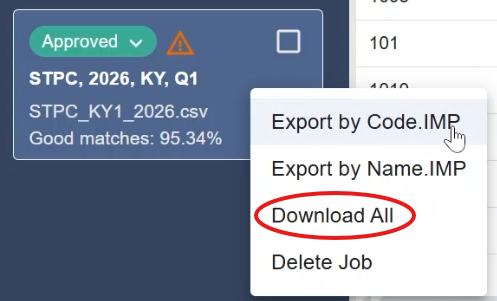
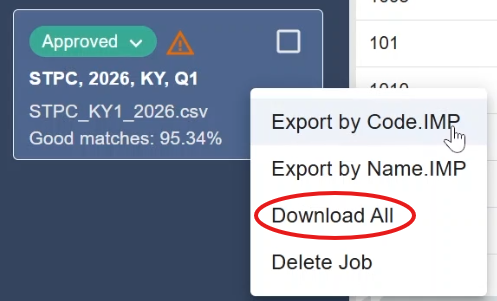
To download all reports for a job, use the export options from the job tile.
Correct Address Exceptions
If a report shows address exceptions that need correction, change the job status to Under Review.
Address corrections can be made from reports that allow editable address fields, such as:
- Match Exceptions
- Non-Taxable
- Allocation Detail
Editable address fields appear as blue text. After a correction is made, the changed text appears in red. Save the correction to reallocate the policy.
Address changes are recorded in the Address Corrections report.
For more information, see Correct Addresses in Allocator.
Next Step
After reviewing the reports and making any needed corrections, approve the allocation job.
Related Articles